
How to Give Hubbli Partner Access in Meta Business Suite
How to Give Hubbli Partner Access in Meta Business Suite
Takes about 5 minutes • You keep full ownership and control of everything
So that Hubbli can run your Meta (Facebook and Instagram) ad campaigns connected to your Facebook page, you need to grant us partner access in your Meta Business Suite. This does not give us ownership of anything. Your Page and ad account stay yours, and you can remove our access at any time.
You will need this number in Step 3 — Hubbli’s Business ID: 258777077835752
Note: The screenshots below show a sample business. You will see your own business and Page names in each screen.
Step 1 — Open Business Settings and go to Partners
In your web browser, go to business.facebook.com/settings and log in with the Facebook account that administers your school’s Page. If asked, select your business. In the left-hand menu, under Users, click Partners.
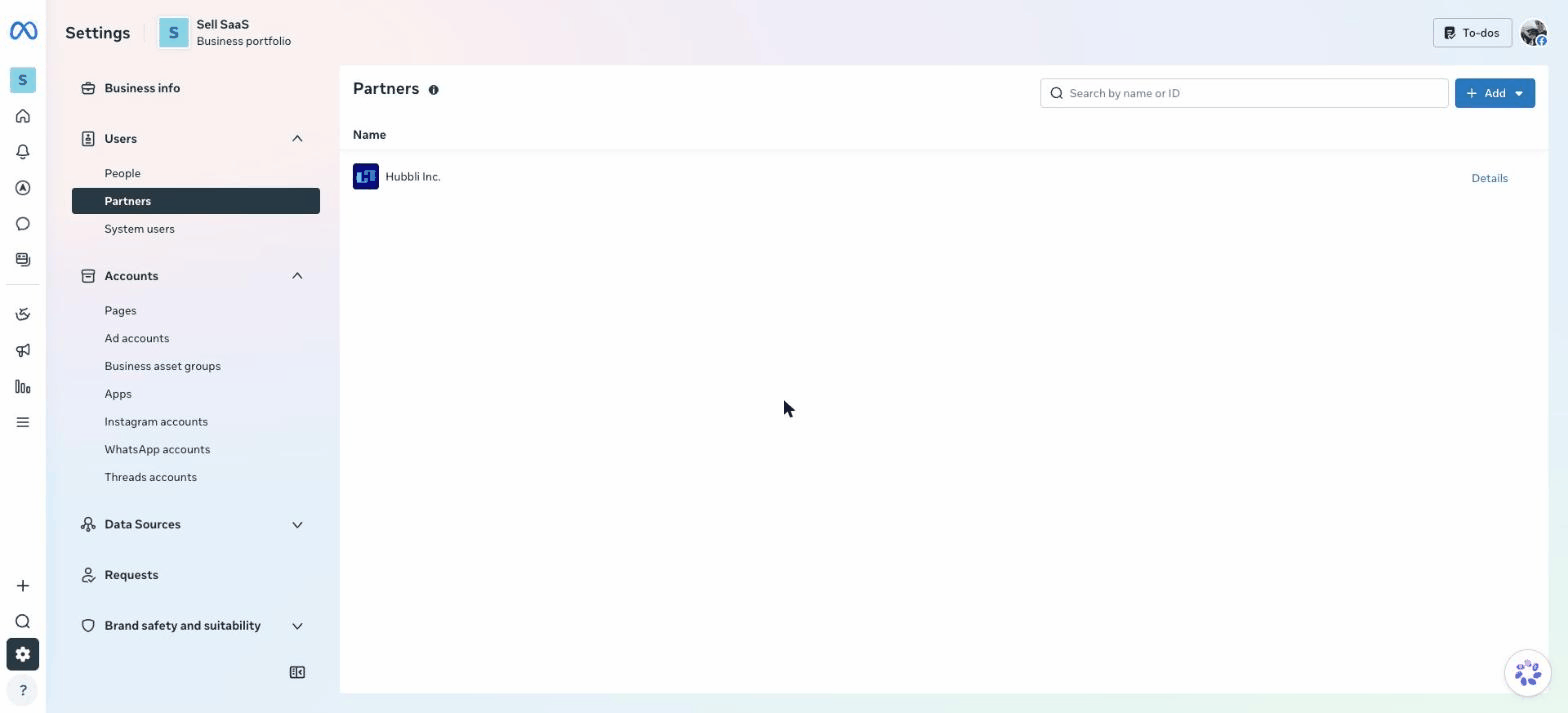
The Partners page in Meta Business Suite settings
Step 2 — Click Add, then “Give a partner access to your assets”
Click the blue Add button in the top right, then choose Give a partner access to your assets.
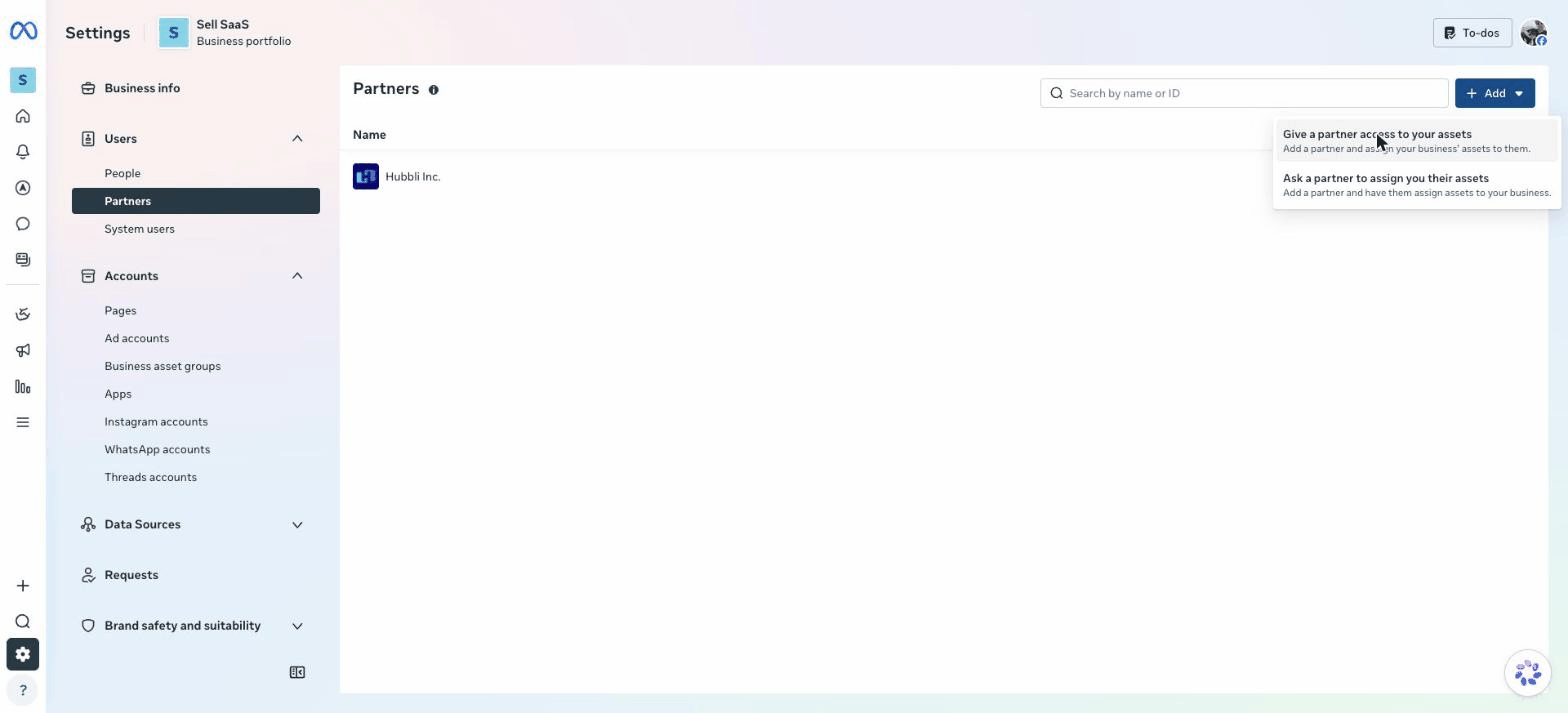
Choose the first option: Give a partner access to your assets
Step 3 — Enter Hubbli’s Business ID
In the “Add a new partner” window, enter Hubbli’s Business ID exactly as shown: 258777077835752 — then click Next.
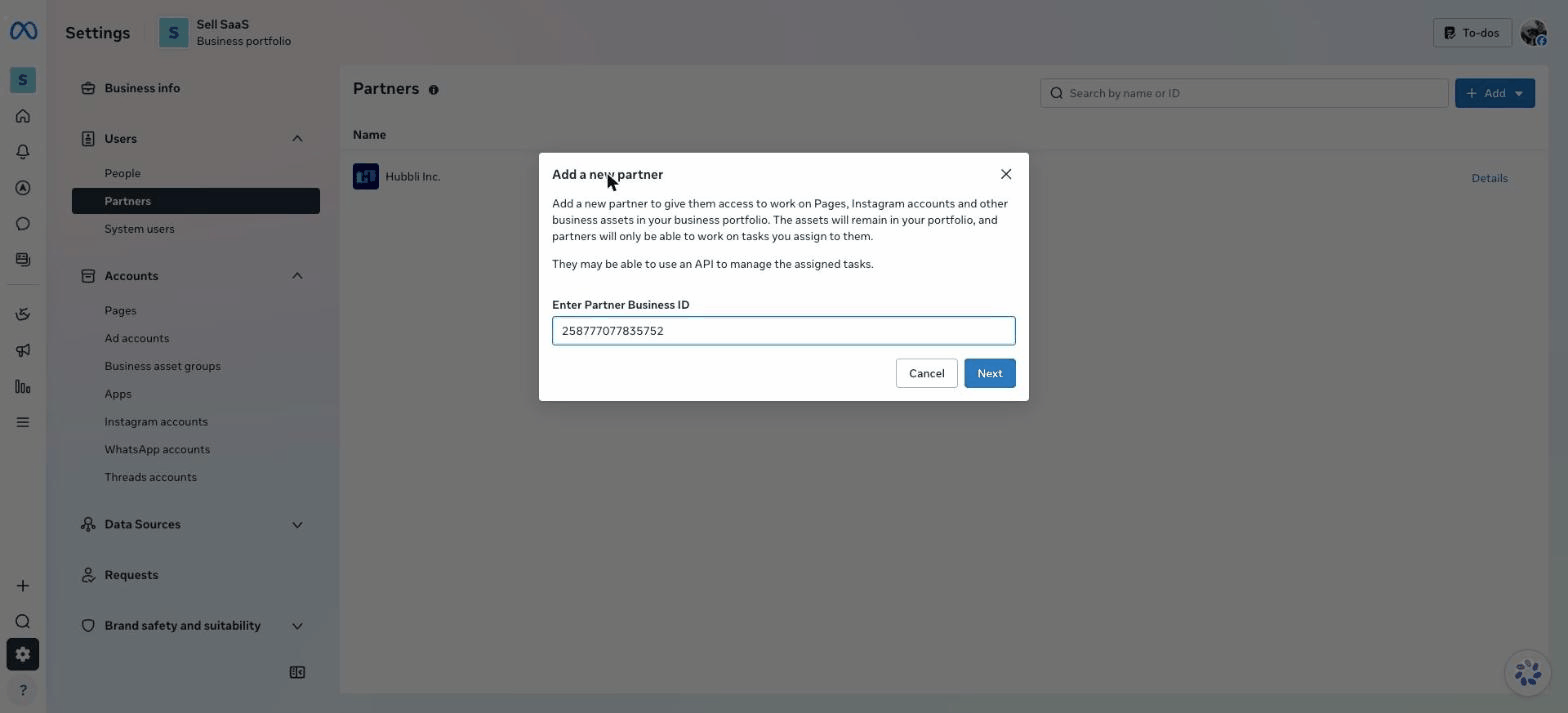
Enter 258777077835752 and click Next
Step 4 — Give access to your Facebook Page
On the left, make sure Facebook Pages is selected. Check the box next to your Page. Then, in the permissions panel on the right, scroll down to Full access and switch on Everything (except sensitive actions). This lets us post content and manage ads for your Page without touching sensitive settings like Page ownership.
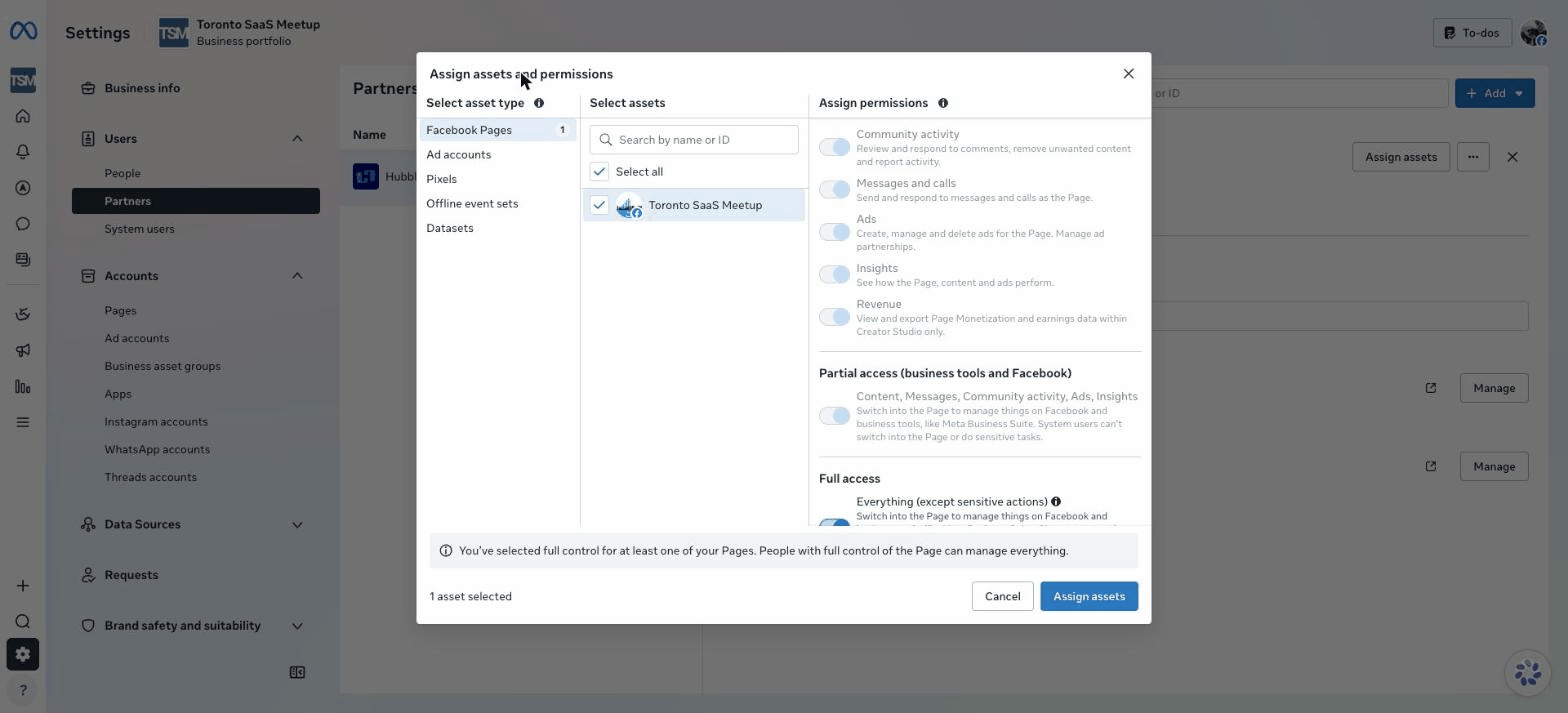
Select your Page and turn on Full access
Step 5 — Give access to your Ad account
Still in the same window, click Ad accounts in the left column. Check the box next to your ad account, then under Full access, switch on Manage ad accounts.
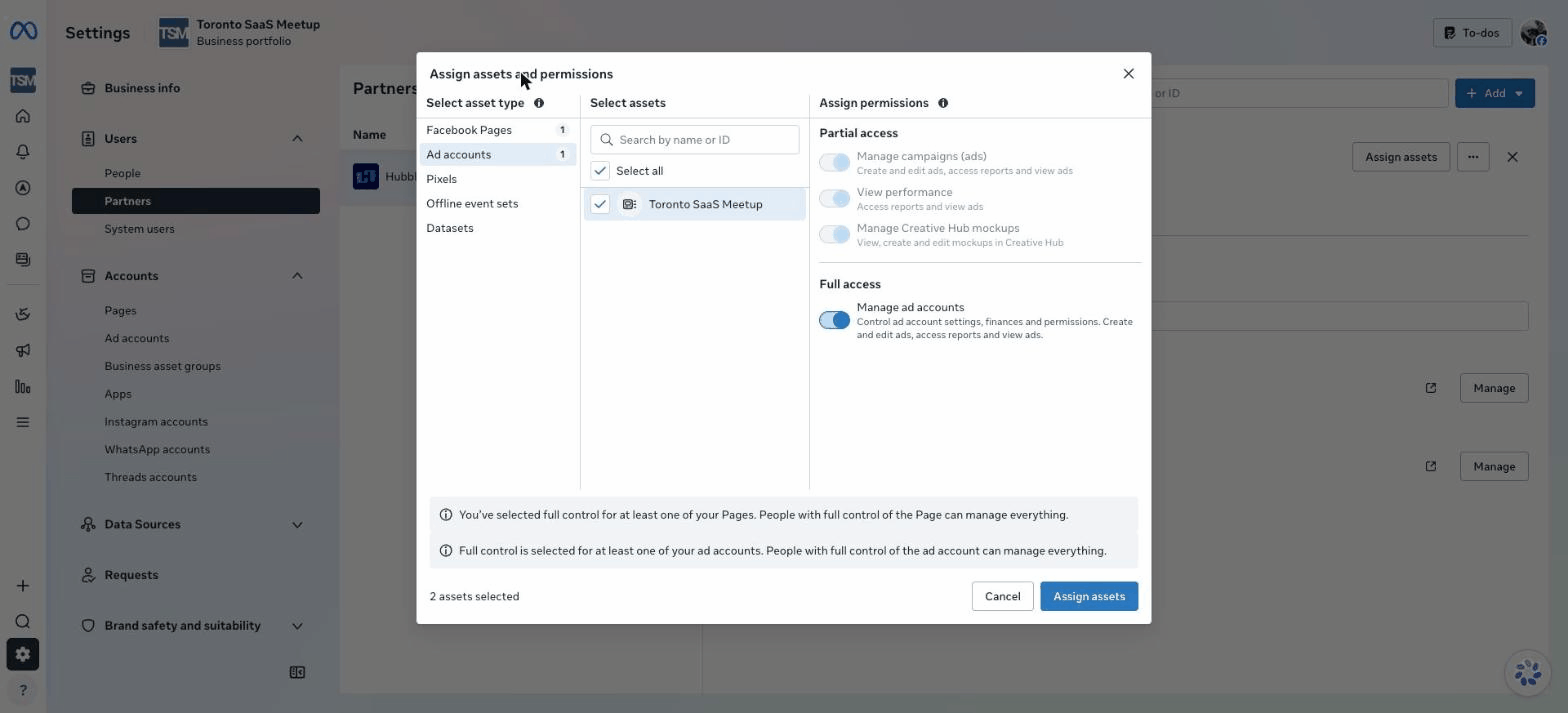
Select your ad account and turn on Manage ad accounts
Step 6 — Click “Assign assets” and you’re done
Click the blue Assign assets button at the bottom right. You’ll then see Hubbli Inc. listed under Partners, with your Facebook Page and ad account shown as assigned assets — like this:
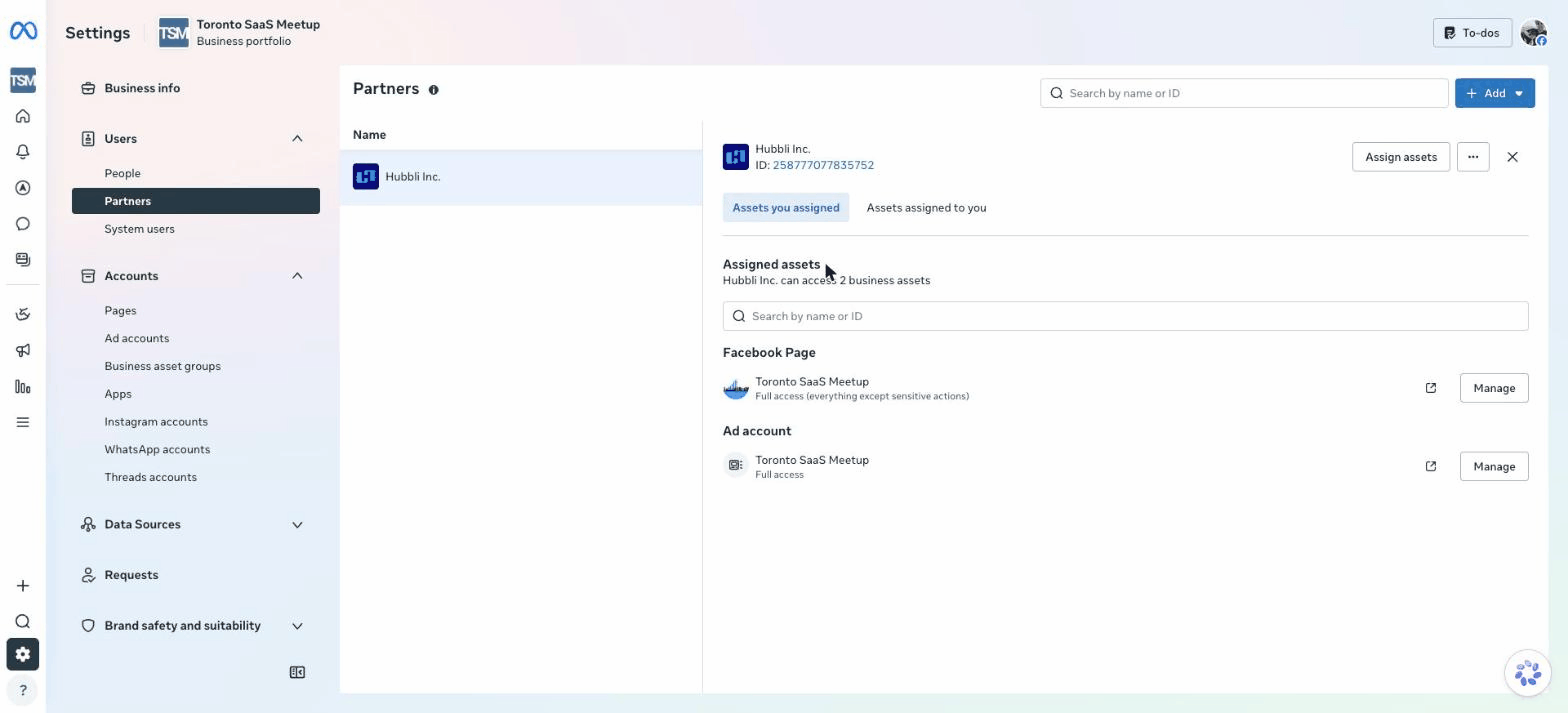
Hubbli Inc. now appears as a partner with your Page and ad account assigned
Having trouble?
- “You don’t have permission” or no Partners menu: You need to be an Admin of your business portfolio. Ask whoever set up your Facebook business account to either do these steps or make you an admin.
- No business portfolio yet: If business.facebook.com/settings asks you to create a business, your Page isn’t in a business portfolio yet. Create one (it’s free, takes 2 minutes), add your Page and ad account to it, then follow the steps above.
- “Partner relationship already exists”: Great — we’re already connected. Just click Partners, select Hubbli Inc., click Assign assets, and complete Steps 4–6 to share your Page and ad account.